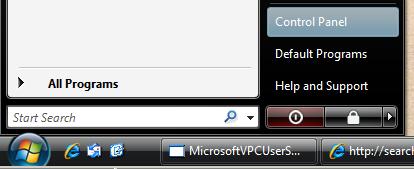
How to install IIS7 on Windows Vista Beta 2Recently, I installed the new Microsoft IIS Web Server IIS 7 (IIS 7.05384.4) on Windows Vista Beta 2 Ultimate Edition. I thought it may be a guide for who wants to install iis server on Microsoft Windows Vista Editions. I also provided screenshots from iis setup. You may also find the article interesting if you will be seeing the IIS 7 user interface for first time . Internet Information Services (IIS) is not default installed on Microsoft Windows operating systems. IIS 7 installation is not different than the IIS 5 or iis 6.0 setup. To install iis on Microsoft web servers, for example on Microsoft Windows 2000 Servers you can use Add/Remove Windows Components from the Add Remove Programs screen which you can reach from the Control Panel. Or on Windows 2003 Servers you can configure your server as an Application Server which will install the IIS on the server. For the setup of IIS 7 on Microsoft Windows Vista Beta 2 you can use a similar Add/Remove Windows Components module. Actually the name of this module has a change for Windows Vista. Now it is called Turn on or off Windows features and you can select the IIS installation options from this Windows Features screen. I want to note that the version of the Internet Information Services IIS 7 that we will install on Windows Vista Beta 2 Ultimate Edition is 7.05384.4 You see, we have a new Start button. We will begin installation of iis 7 by clicking the Start Menu
To setup iis the second step is opening the Control Panel by choosing the Control Panel menu item from the start menu.
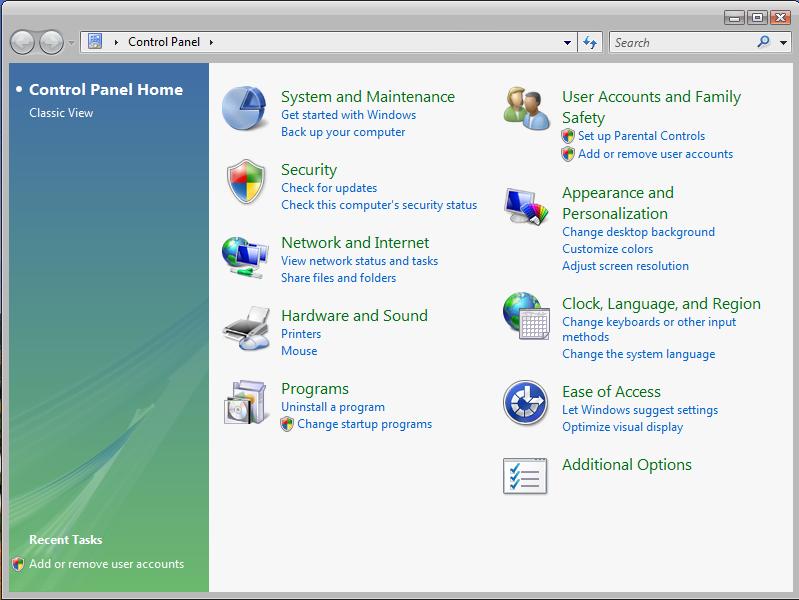
The Windows Control Panel is displayed.
In the Windows Control Panel we will continue with the Programs.
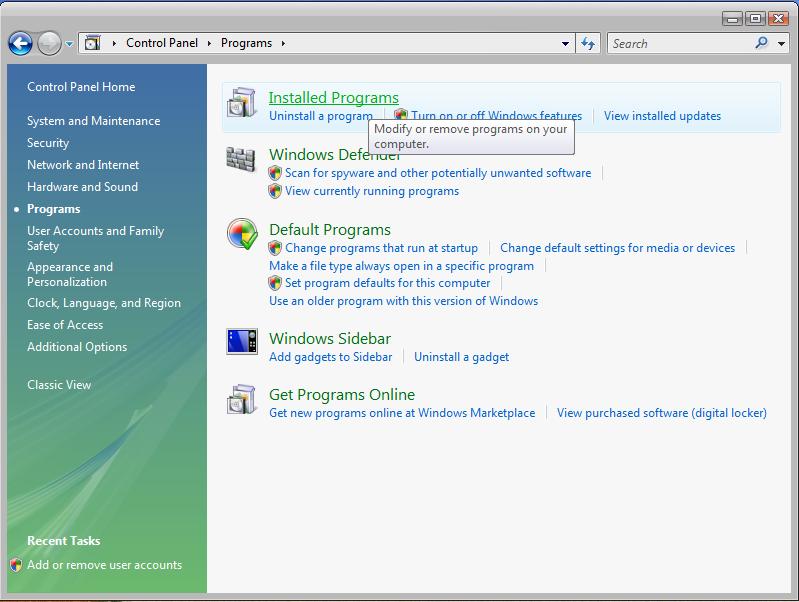
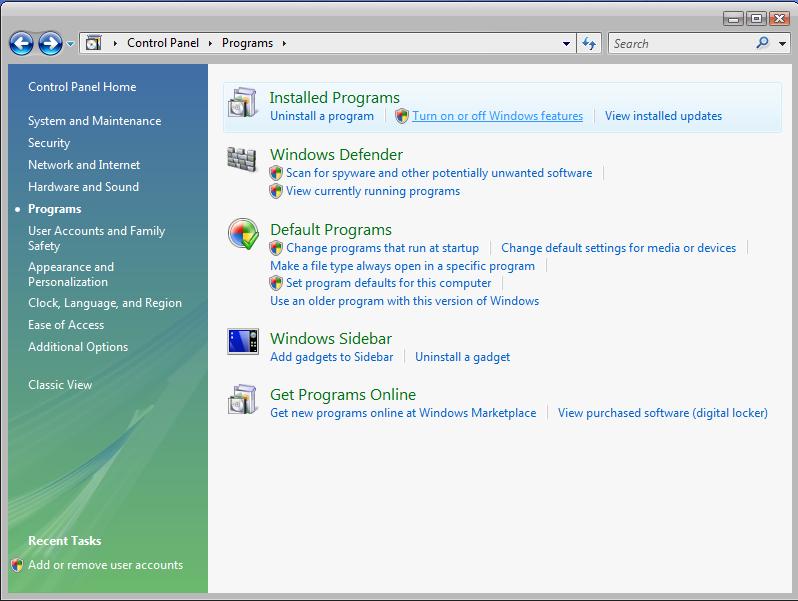
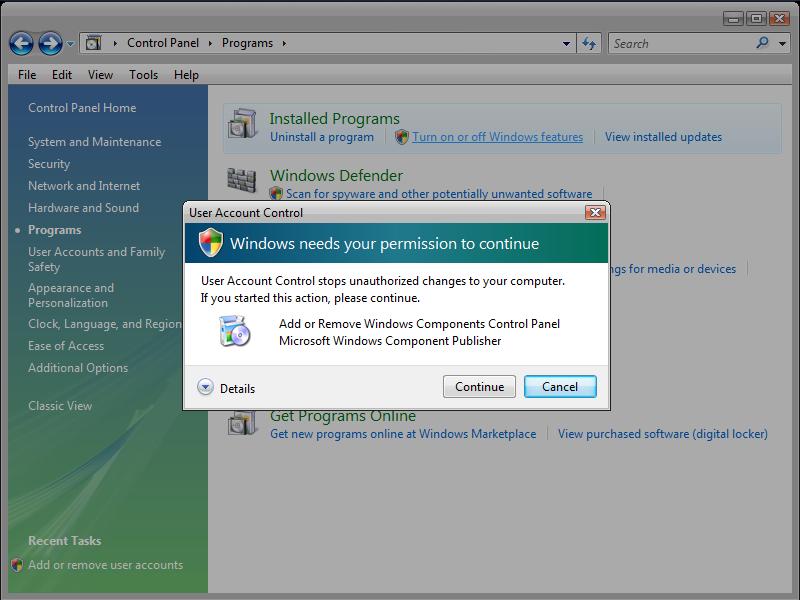
Click On Turn on or off Windows Features link to open the windows components that are installed and that are not installed.
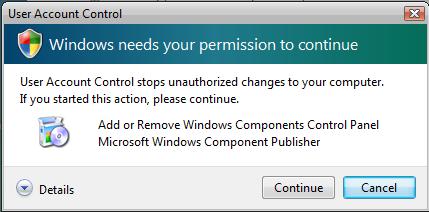
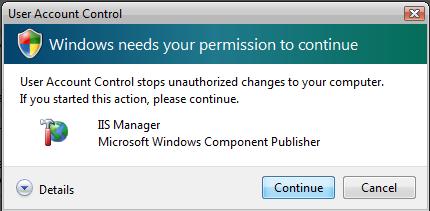
If you are an administrator like me. At this point you will receive the Windows Security warning show as below. This user account control warning is because of the new security considerations in Microsoft. The User Account Control is like running the system as a standart user. You can find more information on UAC (User Account Control) at http://blogs.msdn.com/uac/
If you click Continue button you permit the action of opening the Windows Features window which requires a higher level of security than a standart user owns. In short, if you are an administrator on the Windows Vista systems, for administering your system you will be frequently asked for permission to continue which means pressing the continue button each time.
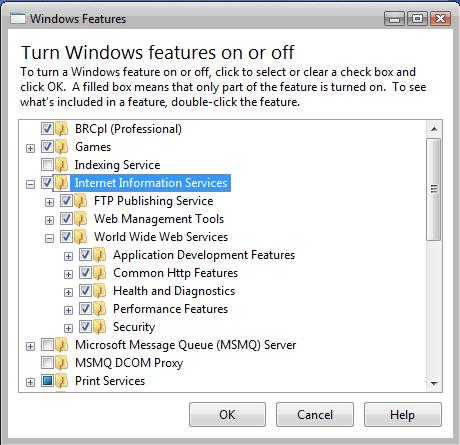
If you click the Continue button the Turn Windows Features on or off dialog will be displayed
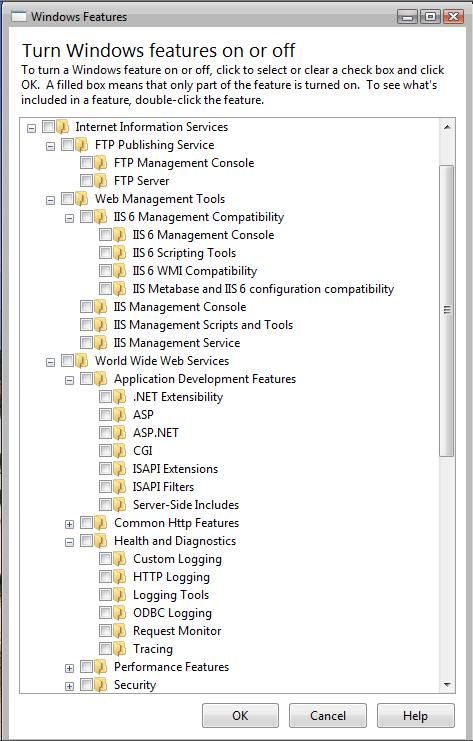
Click on checkbox to select Internet Information Services for installing on your Windows Vista Beta installation. You may need a more detailed list of features of Internet Information Services. You will see these additional IIS features displayed when you drill through the IIS node. Be sure to check the boxes next to Internet Information Services features for installation.
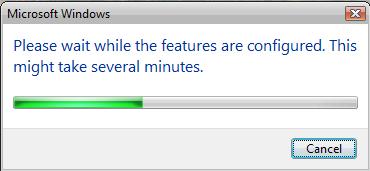
Click the OK button to start installing the IIS 7. OK button will trigger the installation process. Progress bar is going to be displayed
When the installation completes the Windows Features dialog closes and you are returned back to the Control Panel
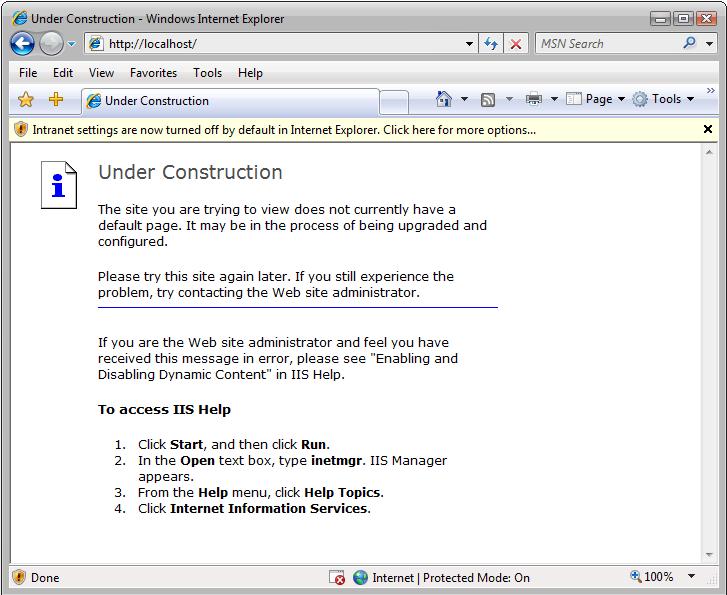
Unfortunately you will not find a shortcut for the Internet Information Services Manager to verify the IIS setup is successfull or not. The easiest way is opening the Internet Explorer 7 web browser and entering the http://localhost into the address bar. When you hit the enter button you will navigate the Under Construction page.
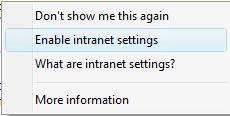
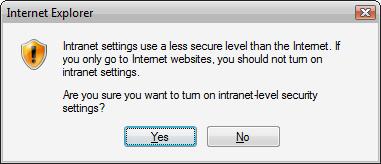
Enabling Intranet Settings....
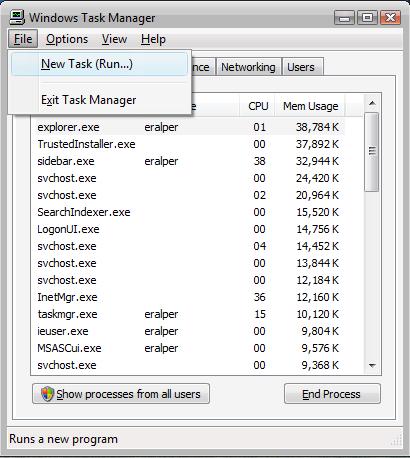
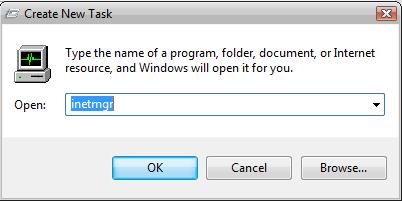
You can call the Internet Information Services Manager inetmgr by running it as a new task.
I added few links for UAC http://blogs.msdn.com/uac/archive/2006/05/03/589561.aspx http://silverstr.ufies.org/blog/archives/000948.html
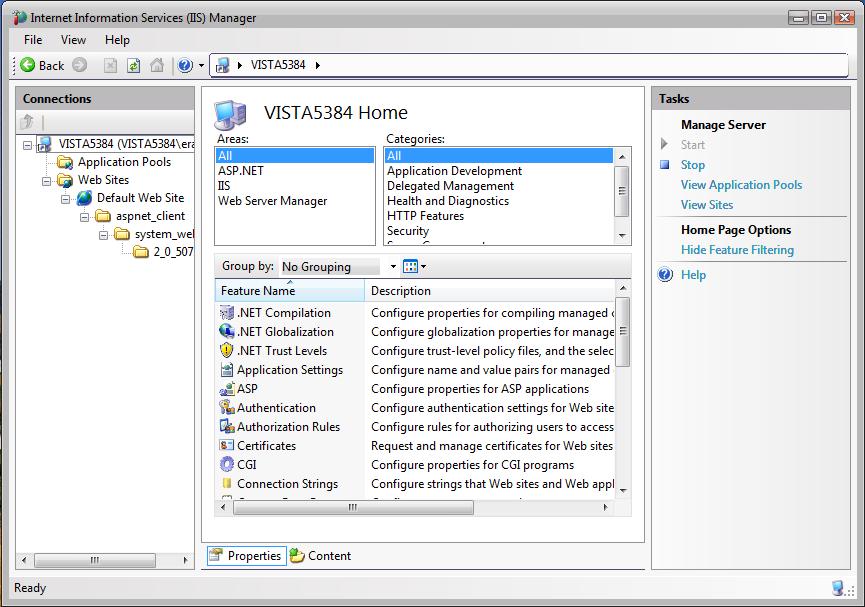
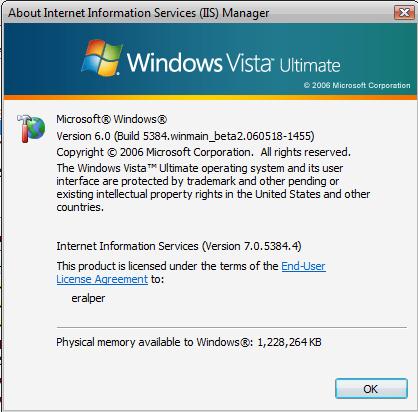
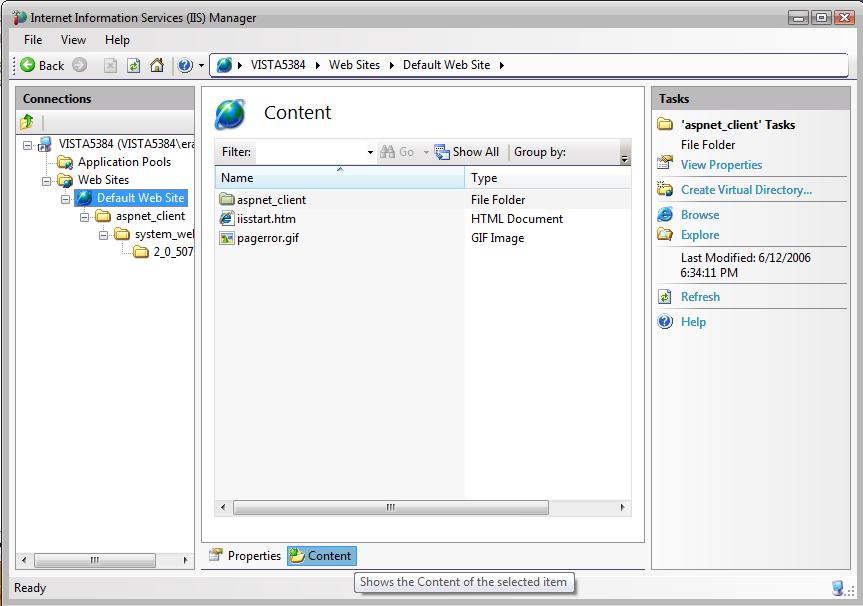
Here is the Internet Information Services (IIS) Manager. The version of the IIS on Windows Vista is 7.05384.4
References and Resources on IIS on the web You can find the Operations Guide for IIS 7.0 at Microsoft TechNet site For more information on IIS 7, you can check the Microsoft Windows Internet Information Services site Also IIS Resources site is a good community site for iis tools, iis downloads, tips and tricks.
|

Microsoft Windows Tools, Applications, Tutorials, Tips and Tricks for Windows Users


 BlinkList
 Del.icio.us
 Digg
Digg Furl
Furl Simpy
Simpy Spurl
Spurl DZone
DZone ma.gnolia
 Shadows