
How to enable Previous Versions
Recently, I accidentally deleted all the contents of a file folder on my Windows Vista system. I thought I had lost all my files at first. But later I thought the Previous Versions feature may survive me from this heartbreaking situation. I did not carry much hope since I was not remembering that I activated the Previous Versions. I was hopefully lucky that I could restore all my deleted files back to original states by using the Previous Versions feature of the Microsoft Windows Vista. So I wanted to share this experience with you and tell you how you can activate this feature Previous Versions on your computers.
Previous versions actually is not a new feature for Microsoft. It was existing on servers with the name Shadow Copies that is periodically backing and versioning folders and files on disks. But now with Windows Vista it is very easy for clients to get benefit from this versioning of files.
All disks marked as available for automatic restore are copied for shadow copies all at once and this snapshot is named as restore point. By default Windows Vista creates restore points daily.
Turn On System Protection and Enable Previous Versions
To enable our Windows Vista to use Previous Versions, the System Protection must be turned on. Each disk or each disk partion must be seperately activated for Previous Versions.
To turn on System Protection open Control Panel (c:windows/system32/control.exe) then select System icon.

This option will open a basic information screen about your computer including system, computer name, domain name, and workgroup settings and activation status.
On the left pane click the �System protection� link button.
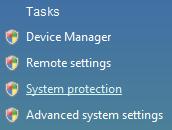
To display System Properties screen for common tasks on your system, you will need administration permissions and you will be requested to continue by Windows User Account.
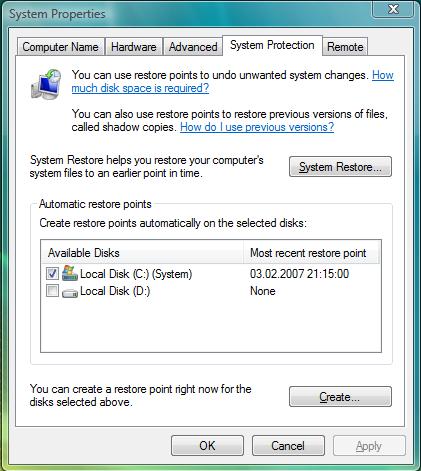
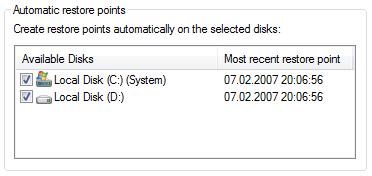
The System Protection tab in the System Properties screen contains information about System Restore and previous versions of files and enables you to activate previous versions file protection on disks available on your computer.
If you select the checkbox next to the disks listed in the Available Disks list, you can activate previous versions for the selected lists. If previous versions is already active for a disk as you see on the sample screenshot you will also see most recent restore point for that disk.
You can create a restore point by using the Create... button. When you click the Create button to define a new restore point, you are requested to enter a descriptive name for the restore point. Then until the below success message is displayed, a progress bar is shown on the screen.
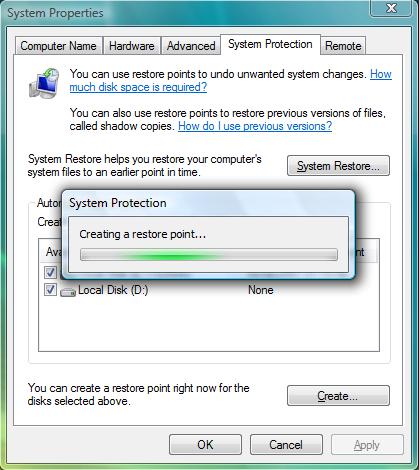
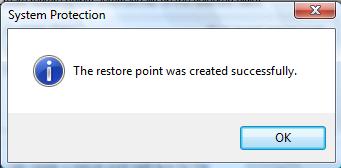
After the success message is shown, the most recent restore points are updated on the list to reflect the latest changes.
How to restore files from previous versions
After previous versions on a disk drive is activated, you can restore files from a restore point in the past. This means if you have a file deleted or updated, you can get back its previous version from the restore points before the update or delete process has taken place.
To view a file from previous versions or copy a file from previous versions, open the Properties screen of the disk drive that the files were originally created on. Or again open the Properties tab of the folder which was containing the files you want to restore older versions or copy from older versions. Then navigate to the Previous Versions tab. Select an approtiate version for the related folder.
For example, I have deleted a text file named SupportLink.txt from the folder D:\SQL2005. To restore the deleted file, open the SQL2005 folder properties then select the Previous Versions tab as shown below.
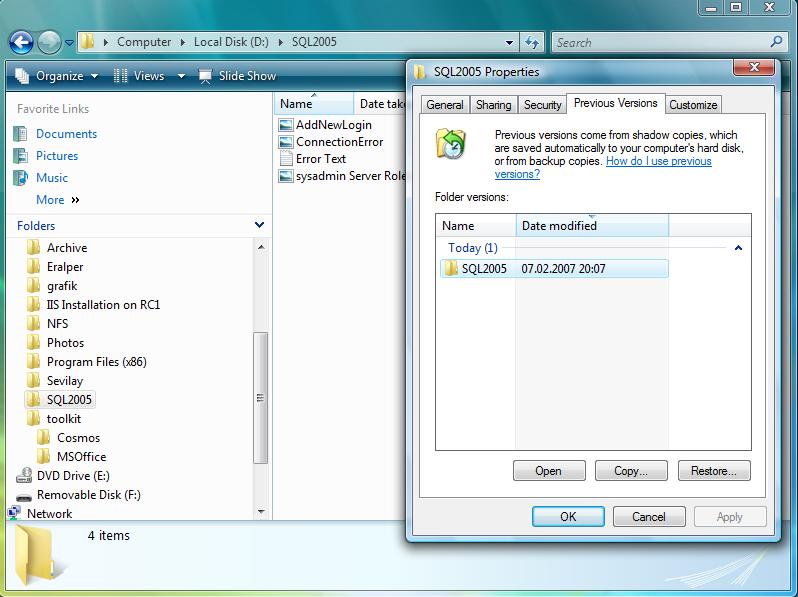
After an approtiate restore point or a folder version that may contain the desired file is selected, click the Open button.
The folder of that version will be displayed on the screen as viewing a current existing folder in the Windows Explorer window. The folder name contains the date that the folder was backed up as a restore point.
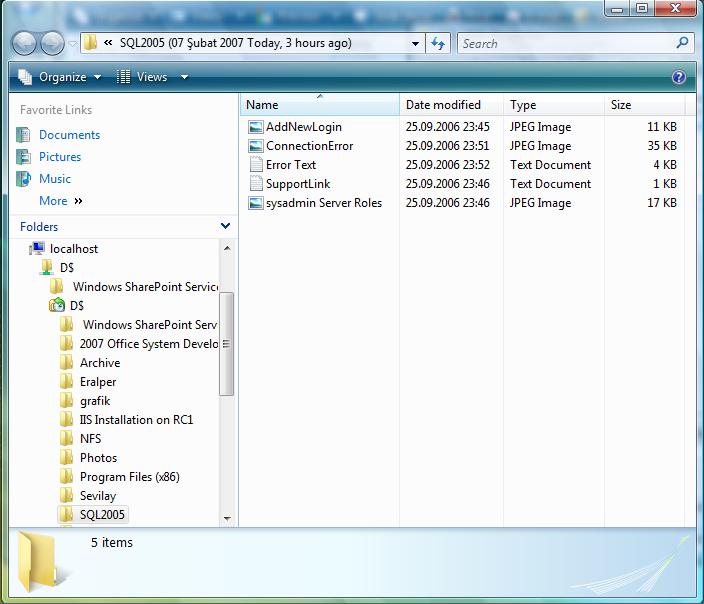
You will see that the deleted file that I want to restore SupportLink.txt exists in the previous version of the folder SQL2005. You can also realize that on the left side pane, the D drive and its sub folder structure takes place. You can restore any file back from that point of time to current date.
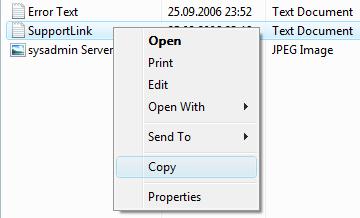
By opening the context menu on the related file by a right click, you can copy the file, or open the file than save it in any folder in the current file structure, or directly print it, etc.
So, it is very easy to configure your new Microsoft Windows Vista systems to use Previous Versions to get your folders and files shadow copies regularly and
restore from these backups or restore points easily to protect your data against accidental losses, etc.