
How to Install Windows Vista Ultima Extras
In this article you can find how you will install Windows Ultimate Extras. If you track the screen displayed on the article, you can find ways to get the latest Windows Updates and Ultimate Extras and review the updates of your system.
Also two recently released Vista Ultimate Extras; Hold 'Em Poker Game and BitLocker and EFS (Encrypting File System) Enhancements are summarized in brief in the last section of the article.
Let's start with Windows Update
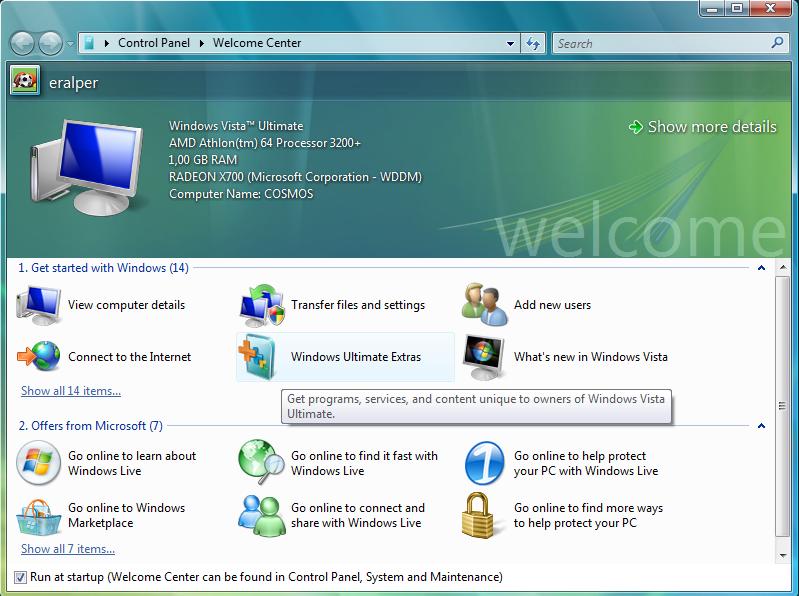
First open Welcome Center and click on Windows Ultimate Extras button.
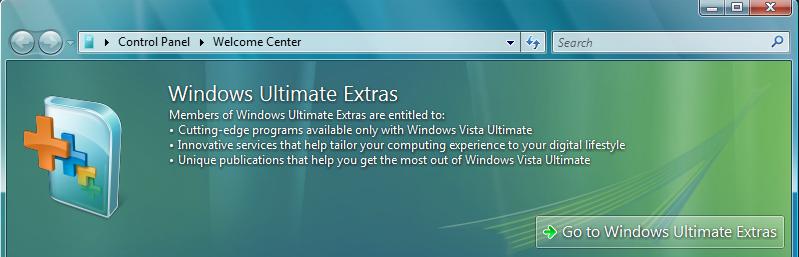
When you click on Windows Ultimate Extras, the upper side of the screen will be updated as follows. Click on the Go to Windows Ultimate Extras button.
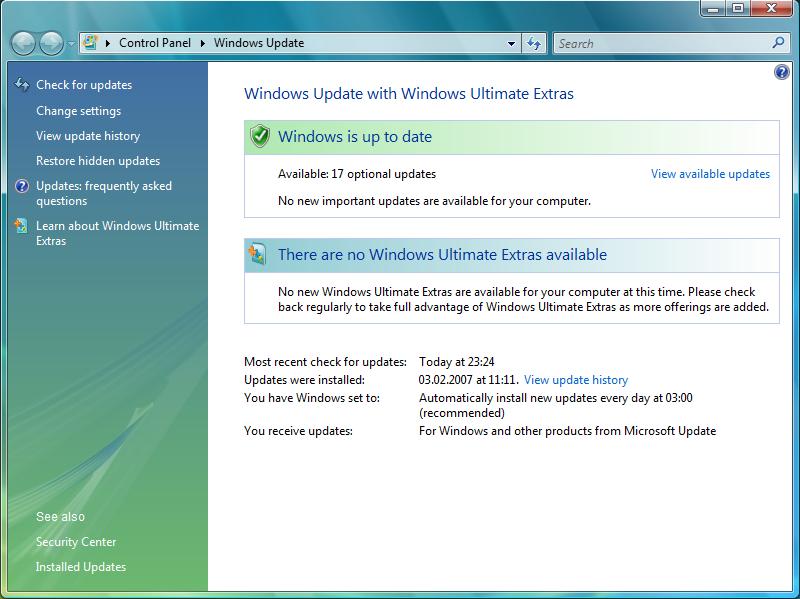
Windows Update screen will be displayed. Windows Update with Windows Ultimate Extras is summarizing the current update status of your system. You can view a list of available updates if any. Also you can find out if any Windows Ultimate Extras are available.
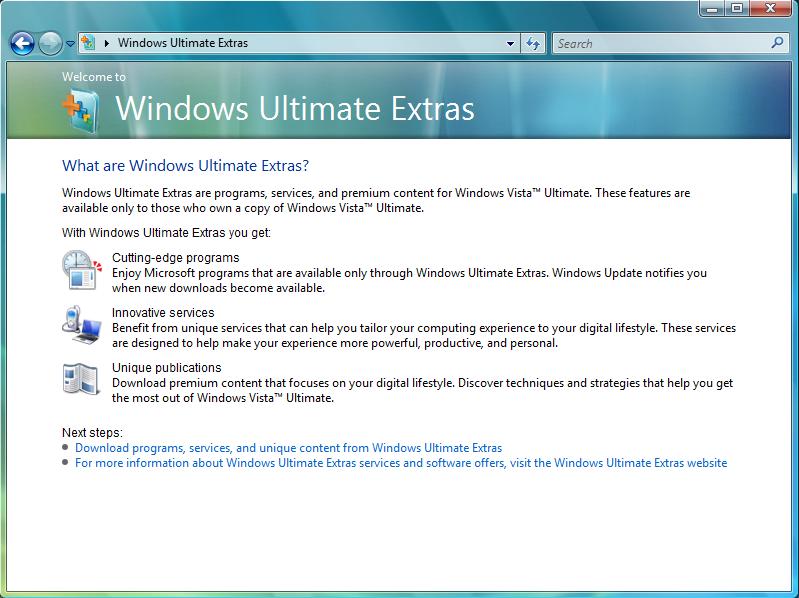
If you click on the link Learn about Windows Ultimate Extras on the left hand side of the Windows Update panel, you will be navigated to the below screen titled What are Windows Ultimate Extras?
Also the links on the bottom of the screen will lead you to the Windows Vista Ultimate Edition site.
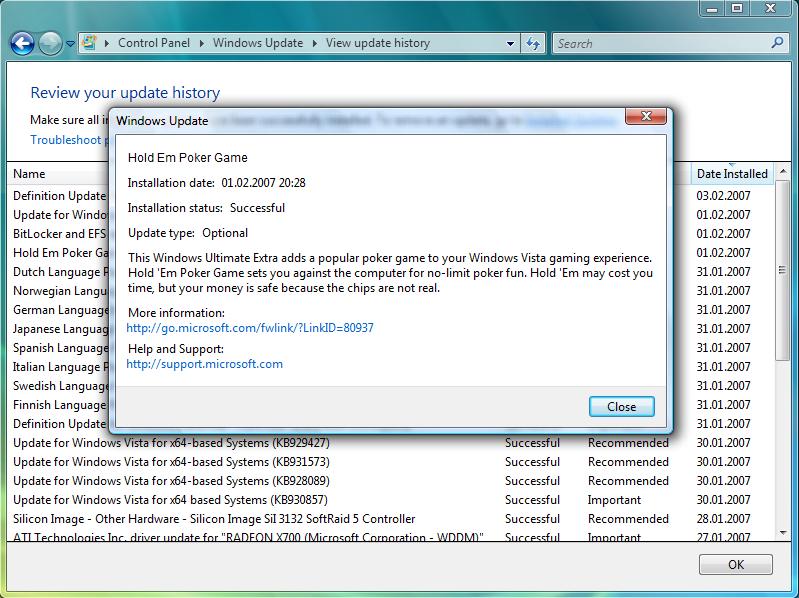
If you click on the View update history link button the below screen will be displayed containing a list of updates, installation dates, etc.
If you double click on an item in the update list, a detailed information about the update is also supplied.
For example, the below update history detail belongs to one of the two Ultimate Extras released recently, Hold 'Em Poker Game. This is a
popular poker game to introduce you with Windows Vista gaming experience.
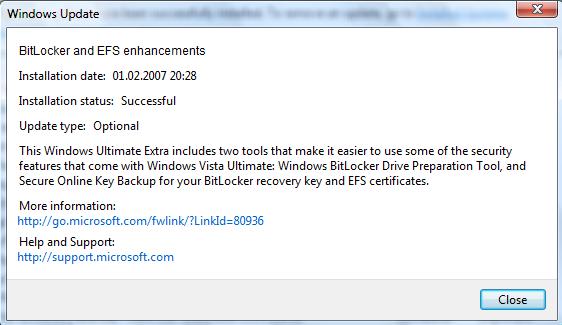
The second Windows Vista Ultimate Extra released is the BitLocker and EFS (Encrypting File System) Enhancements.
This package contains two tools to help you protect your computer and keep your system secure by making it easier to use some new security features of Windows Vista Ultimate.
These tools are the Windows BitLocker Drive Preparation Tool and Secure Online Key Backup tool.
Windows BitLocker Drive Preparation Tool configures the hard drive of your system in order to be used with the BitLocker Drive Encryption feature of the Windows Vista. Windows BitLocker Drive Encryption encrypts everything including data, programs and even the Windows itself to increase security.
Please review the article Windows BitLocker Drive Encryption Step-by-Step Guide at Microsoft TechNet site at page Windows BitLocker Drive Encryption Step-by-Step Guide for more information on how-to's about the Windows BitLocker Drive Encryption
Secure Online Key Backup tool stores a backup of your system's BitLocker recovery password and EFS (Encrypting File System) recovery certificates in your digital locker.
I can recommend you keep the Vista Ultimate Extras updates for Windows DreamScene which will enable you to play movie files on your system as your desktop background and also additional features for desktop background images.