SAP MiniWAS Web Application Server 6.20 and SAP DB Installation for Windows and Troubleshooting
SAP MiniWAS is short form of SAP Web Application Server. And I will try to share with you my MiniWAS installation.
I have recently worked for a few hours on install of SAP MiniWAS Web Application Server 6.20 and tried to trouble shoot problems I experienced during the installation.
I can suggest you to read the install documentation for the SAP MiniWAS installation and for the SAPDB for Windows installation.
The documentation is well prepared and has noted on the necessary cautions for the SAP MiniWAS and SAP DB installations.
Trouble Shooting in MiniWAS Installation
You may encounter a few problems during the MiniWAS installation as I experienced recently.
First be sure that you are using the correct installation CD's for the SAP Database Software.
Kernel CD is CD1, Data 1 is CD2 and DATA 2 is CD3.
And to finish the installation of MiniWAS successfully be sure that the port 3600 is not being used by an other application.
To be sure for that you can search if any entry for port number 3600 exists at "services" file located in "C:\WINNT\system32\drivers\etc" system folder.
Here is the two forum topics in Kodyaz SAP Forum that I faced and solved during the MiniWAS installation.
First is Miniwas 6.20 installarion - Error: CDSERVERBASE ConfirmKey 2 11
And the other is MiniWas installation - Error: R3MESSAGEPORT_IND_IND Ins_SetupServicePorts 2 1122.
Step by Step MiniWAS Installation Screenshots
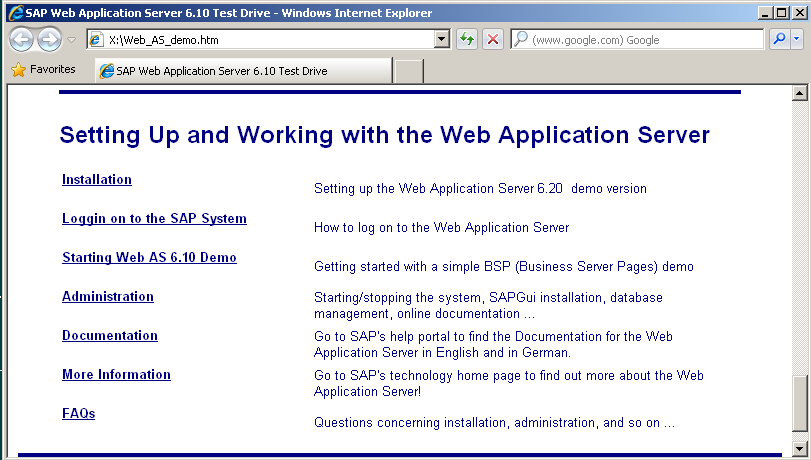
Place the Disk 1 into the CD Drive or if you have mapped your MiniWas installation CD's as new drives go to the root folder of the first installation disk. If you open the Web_AS_demo.htm how-to guide, you will see the Installation which will guide you through the installation steps.
When you click on Installation, you will be redirected to the SAP Web Application Server Installation document (Web_AS_inst1.htm) which is in DOCU folder of the MiniWas installation CD1.
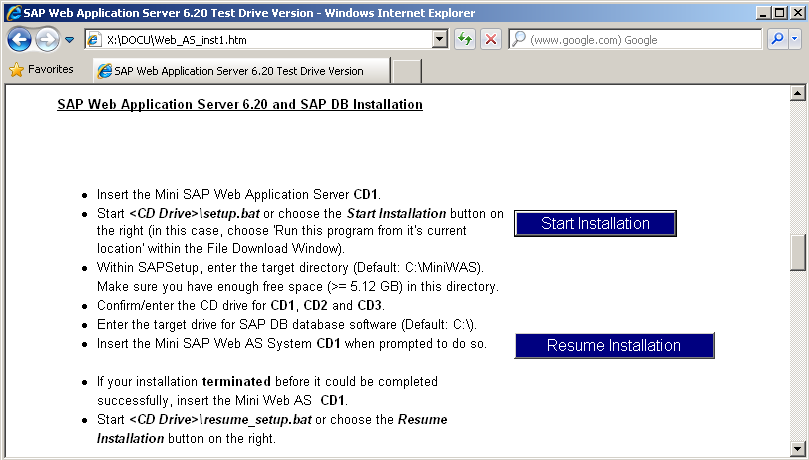
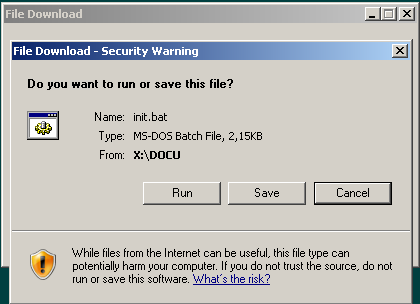
Click on the Start Installation button.Click on the Run button to start the installation batch file init.bat
The installation wizard INSTGUI will ask you in which drive you want to install the SAP DB software first.
If you select drive C, then the application SAP DB software will be installed to folder "C:\MiniWAS"
Click Next button for the next step.
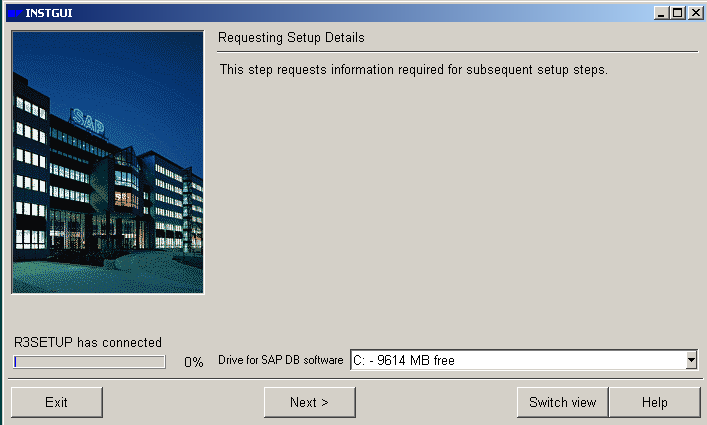
Then you will be prompted for the KERNEL CD. Actually the Kernel CD is the CD1. If you have mapped the .iso file like me to a drive letter, you can point to that drive. If you have the original installation CD's or prepared copies of the installation CD's of MiniWas then place the first CD which is the Kernel CD to the CD Drive.
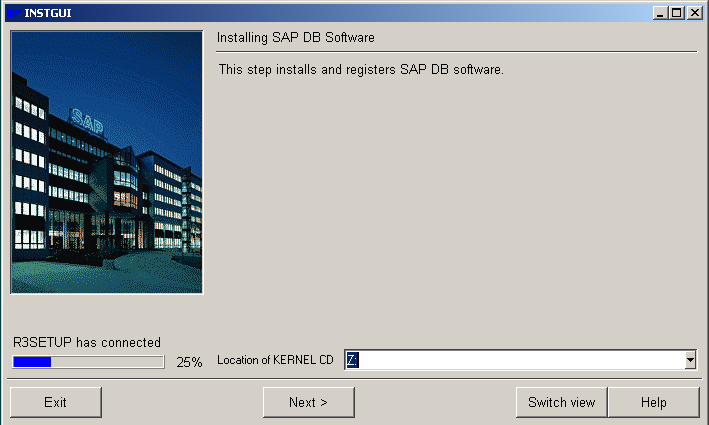
Click Next button to continue.
You will be informed that the related step will install and register the SAP DB software.
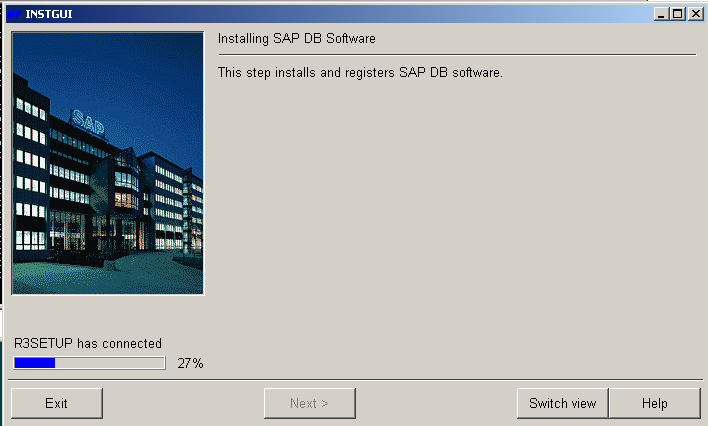
Install GUI is informing about the running process during the installation steps.
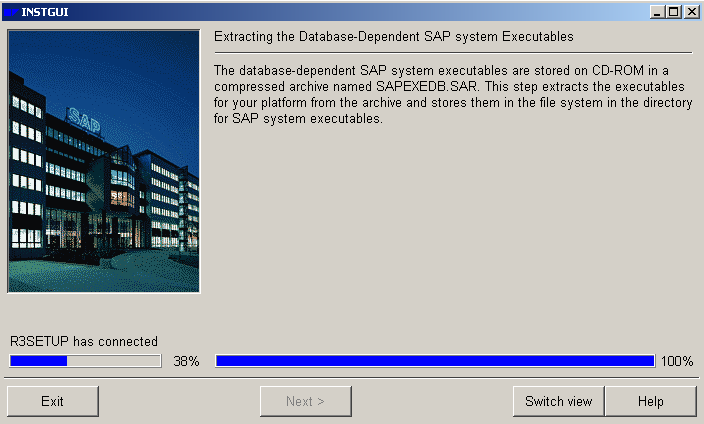
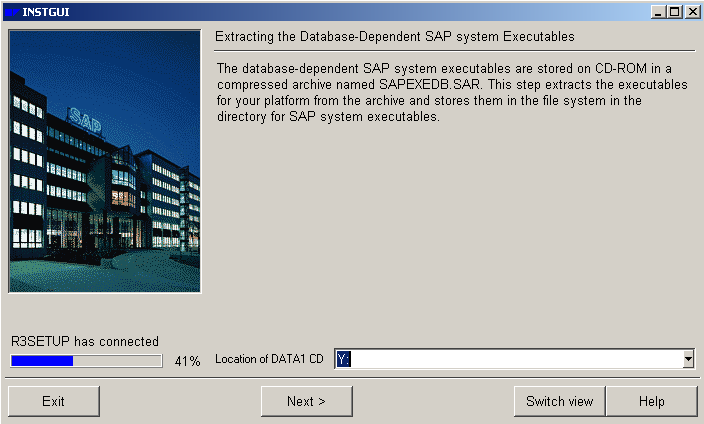
Now the GUI is requesting other CD's for completing the installation. The DATA1 CD is the second CD. Do not point to a false CD. Otherwise you will not be able to continue installation. After you have selected the place where DATA1 CD is located, click Next to continue MiniWAS installation.
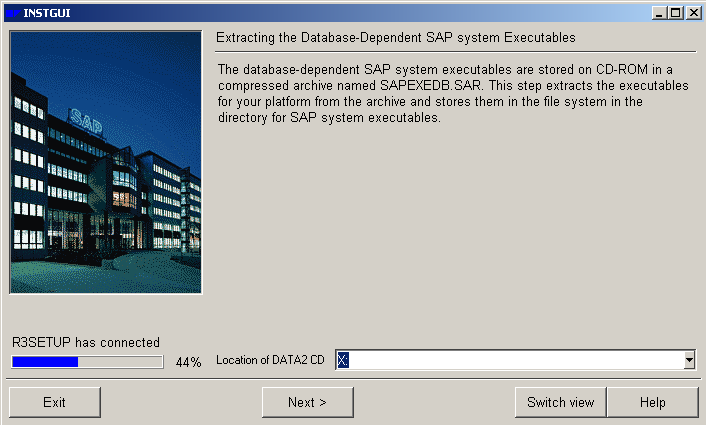
MiniWAS installation wizard will also ask for the second data CD, DATA2 CD. After you have identified the location, click Next to continue.
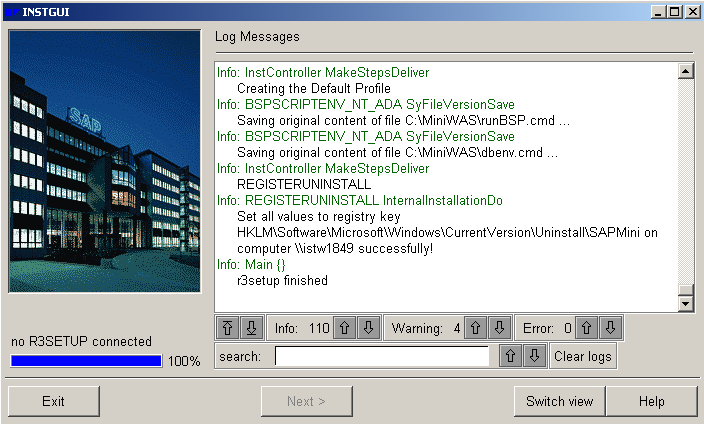
The last step in MiniWAS installation is the message "r3setup finished" message as you see in the below dialog screen of the Installation GUI.