
What is Private Filtering on IE8 and How to Prevent Web Sites from Collecting Information About You?
Microsoft has introduced a few enhanced features to web users to prevent their privacy on the web with the Internet Explorer 8 (IE8).
One of those features for securing privacy on the web is the Private Filtering feature of IE8.
And the other useful property is the InPrivate Browsing feature which enables web users a private browsing session and enables them a private web surfing.
Why I need to use Private Filtering to Keep Secure my Web Profile Data
With the web sites growing in the web publishing industry and the increased share of web advertisement, web sites which are profiling users have great progress.
Web giants like Google, and other advertisement sites have a lot publishers working for them by publishing those sites ads on their sites.
Or the web sites building tools for and serving as web traffic-analysers to content publisher web sites have many members.
Some sites are creating maps displaying from which part of the world the visitors are coming from.
Some sites creates graphics, reports, and similar analyze tools for content providers giving detailed information about the visitors for SEO (Search Engine Optimization), etc targets of the publishers.
An other example is the Amazon.com which may be considered as the leader of the profiling and customizing of web content according to the habits and history of each visitor.
So what is the deal here? It is the power born from the unique web content providers' information shared with those web giants about your clicks, or the navigation proferences.
Let's say you navigate to web site A which is displaying a banner or an advertisement from one of the ad providers. Here is one info. You are at site A, kept on the ad provider.
Then you browse to site A which is also displaying an advertisement from the same provider. Here is an other information about you.
And if those info is gathered together, those industry giants will have a well defined profile of your surfing preferences on the web.
How technically this tracking is done?
In general this tracking is implemented by calling a third-party content which might be a transparent image in one pixel sizes.
Or a javascript code which is embedded into the original content from the ads providers' or analyzer web sites' web site.
You see that those third-party content is not always visible to you like advertisements, visitor counters, or traffic maps, or web site value displaying images, or bookmark web sites utilities.
Actually this has pros and cons. Advertisers will probably use those profile information about advertisement targeting for your profile. This will enable them more productive advertisement publishing methods.
How to use the Private Filtering on IE8 ?
And InPrivate Filtering feature from Microsoft IE8 helps you prevent website publishers or content providers from collecting and gathering information about web sites you have visited during your private session.
InPrivate Filtering feature analyzes the web content of the web pages you are visiting.
It marks the the same content that is being displayed on a number of websites that may give the idea of a common item.
And the InPrivate Filtering enables you to allow or to block the common content that might provide information about your browsing.
As well as you can configure the InPrivate Filtering automatically block, you can also manually turn on and turn off InPrivate Filtering for the related content provider or hird party web site.
How do I turn InPrivate Filtering on and off on IE8?
In Private Filtering feature is available through the Safety menu on IE8. Then you can enable and disable through InPrivate Filtering by selecting the InPrivate Filtering menu item. And configure private filtering in more detail by selecting the InPrivate Filtering Settings
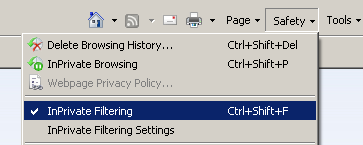
With the default setting in IE8, the InPrivate Filtering analyzes the websites you are visiting and the content providers used by those web sites.
And if you are using IE 8 for a while you can see the list that IE8 has formed for me as shown below.
You have probably a similar result list like me.
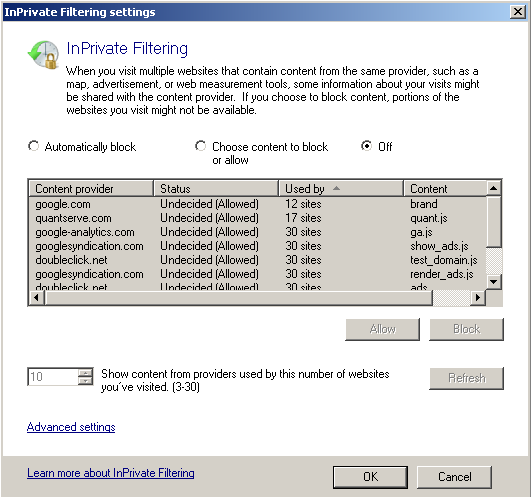
You can choose any of the options above to protect your privacy on the web.
Automatically block
Choose content to block or allow
Off
In order to activate the InPrivate Filtering feature on IE8 for the first time :
On Internet Explorer 8 (IE 8) main menu select the Safety menu option then select InPrivate Filtering feature sub-menu item.
First option Automatically block will block the web content and the provider when the IE8 decides that it is a common content file provided by a third-party web site
Second option Choose content to block or allow will let you choose the providers you want to allow or block. Then decide on each provider to block and allow by using the Allow and Block buttons.
Click Off if you wish to turn off and disable InPrivate Filtering on IE8.