
How to Attach Database in SQL Server 2012
For SQL Server database administrators, who are requested to attach database file to SQL Server 2012 code-name Denali, I can suggest to place the .mdf database data file into SQL Server data folder first.
For my installed SQL Server 2012 instance, data folder is specified during the Microsoft SQL Server 2012 installation as :
D:\Program Files (x86)\Microsoft SQL Server\MSSQL11.DENALI\MSSQL\DATA
If you have not yet copied .mdf file to the above target folder, you can do it before you start database attachment task.
In this SQL Server Attach Database tutorial, I'll use Microsoft SQL Server 2012 Sample databases - AdventureWorks.
You can free download SQL Server 2012 sample databases including AdventureWorks database following the URL.
Note that the data file (.mdf file) of SQL Server 2012 Sample database AdventureWorks is AdventureWorks2008R2_Data.mdf for SQLServer 2012 CTP 1.
The AdventureWorks sample database download for SQL Server 2012 does not contain .ldf log file.
So actually in this tutorial you will find the answer "How to attach mdf file to SQL Server 2012".
Open SQL Server Management Studio which is installed with Microsoft SQL Server 2012 (code name Denali).
Connect to target Microsoft SQL Server 2012 instance.
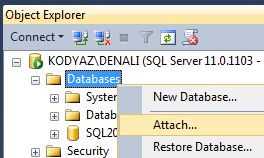
On the Object Explorer windows, click on Databases node. Open context menu by right-click. Select Attach... menu item.
A task wizard which will guide you during the Attach Database process will be displayed as follows.
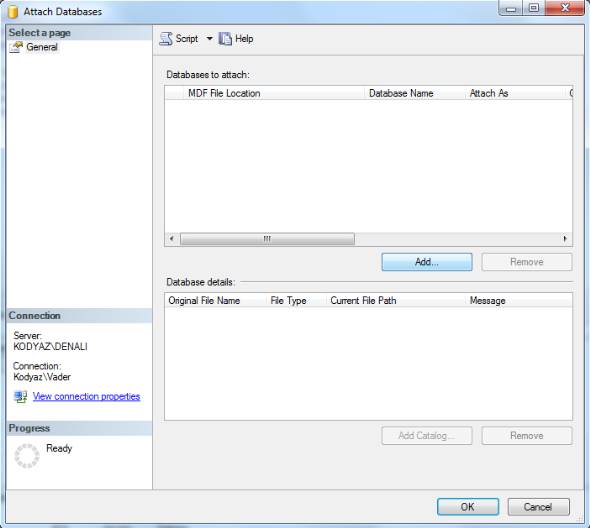
Click on Add buton in order to point to .mdf data file which you want to attach to SQL Server 2012.
Locate the target database data file (.mdf) from the following screen.
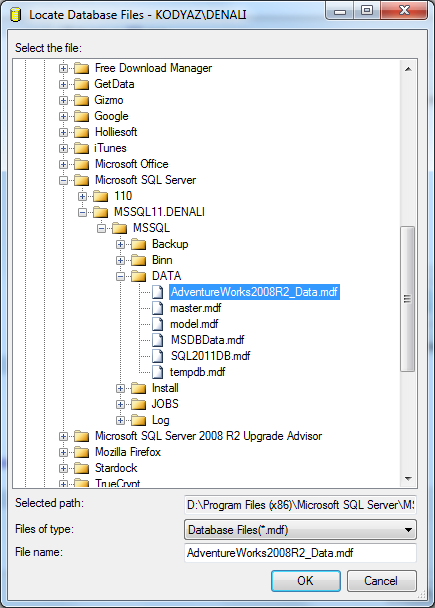
After I click OK button to continue with next step in Attach Databases wizard, I see that the log file (.ldf) file path is set by default as :
C:\Program Files\Microsoft SQL Server\MSSQL11.MSSQLSERVER\MSSQL\DATA\AdventureWorks2008R2_Log.ldf
Since the SQL Server 2012 sample database AdventureWorks has only .mdf data file and does not have .ldf log file, highlight the log file and remove it using the database details window.
Removing the log file which does not exist will cause the SQL Server 2012 to rebuild the log file again for the new sql database.
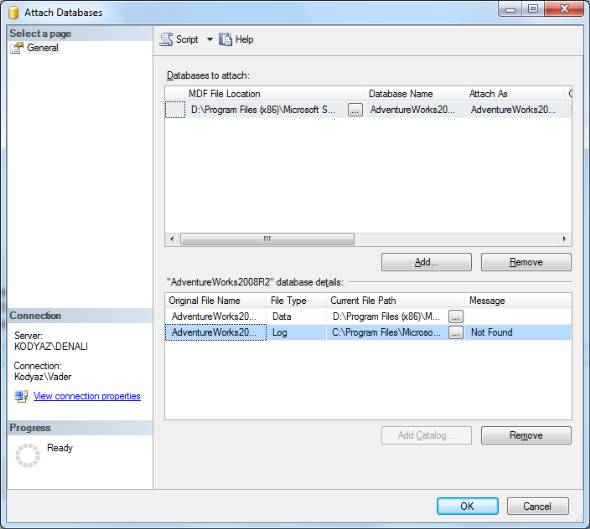
Click Remove buton in order to remove log file which is already stated as "Not Found"
This is the procedure how to attach database without log file.
After you remove .ldf log file, click OK buton to continue.
If an error occurs, Attach Database wizard will popup an error screen where you can find more details about the reason of the error.
Otherwise attached database will be listed among Databases node in SQL Server 2012 databases.
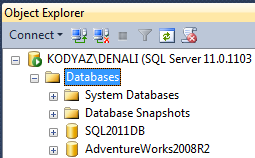
After attach db, now you are ready to use SQL Server 2012 sample database AdventureWorks and discover Microsoft SQL Server 2012 features.