
SQL Server administration and T-SQL development, Web Programming with ASP.NET and Javascript, SAP Smartforms and ABAP Programming, Windows 7, Visual Studio and MS Office software Kodyaz Development Resources
Development resources, articles, tutorials, samples, codes and tools for .Net, SQL Server, Vista, etc.


Win FREE BOOK
from Kodyaz


CRM Companies List
Web Based CRM Software


How to Determine SAP GUI Version


In order to determine SAPGui Version installed on your client PC and to know the Patch Level of your SAP GUI installation, SAP users or ABAP developers can use SAPLOGON or SAPLOGONPAD application.
Using SAPLogon it is very easy to answer the common question "How to get SAPGUI version installed on a client computer ?"

Let's start how to get patch level and SAP GUI version of your installation following the below step by step guide.

Open your SAP Logon Pad by a double-clicking to the icon on your desktop.

sap-logon-pad-shortcut


Click on the top-left corner of the SAP Logon Pad window.
When the menu is displayed, a dropdown list of submenu items will be listed.
Select the "About SAP Logon..." option which is displayed as the last option, as shown in the image below.
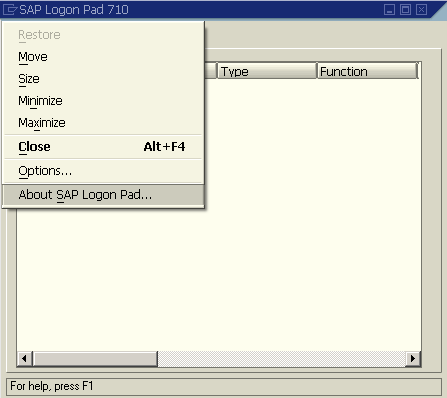
about-sap-logon-pad-710-version-info

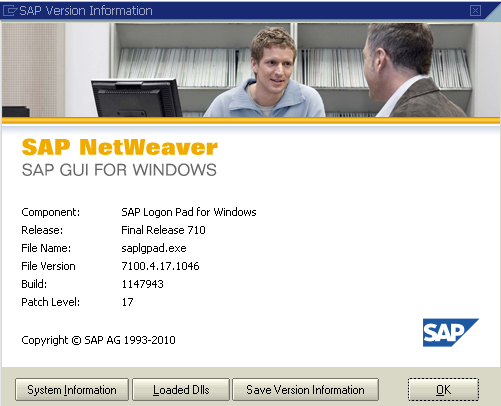
An info screen which is similar to the one shown below will appear.
Check the lines with label "Release" and "Patch Level".
The Release and Patch Level lines shows SAP users the SAPGUI version information in detail installed on target client PC.
sap-version-information-sap-gui-for-windows

Here in this example, the SAP GUI version number is 7100.4.17.1046.
The first part 7100 of the SAP Gui version gives us the release information.
This SAP GUI is the Final Release 710 (means 7.10).
You can also see that the patch level is displayed as 17 (look at line Patch Level 17).
1046 which is the last portion of the version number is showing us the internal build number of the GUI application.

It is also possible to take the version information from the file properties of the SAPGUI.EXE executable file.
SAPGUI application executable can be found in file folder "C:\Program Files\SAP\FrontEnd\SAPgui\SAPgui.exe" with a default SAP GUI installation.



SAP Resources

SAP Tutorial

SAP Forums

SAP Tools

SAP Transaction Codes Table


Recent and Top SAP Tutorial and ABAP Tutorials

Change Output Condition Records
Web Dynpro Text Translation using Assistance Class
Move Minus Sign from Right to Left of Negative Number in SAP Smartform
Read Address Data using FM ADDR_GET instead of Querying ADRC Table
Add Value Help to Web Dynpro Select Options
Add Web Dynpro Applications to SAP Favorites Menu
Component Usage ALV Does Not Have an Active Component
Web Dynpro Component Service Syntax Error in Program /1BCWDY/O3EC1AX6A3OVKK9L5FXO==CP
Web DynPro Tutorial - Display Spool Requests using Web DynPro Table
Web DynPro Tutorial - How to create Web Dynpro Application (Web Dynpro Component)
Display Data on Web DynPro Table Element
Test Web Dynpro ABAP Component by Creating Web Dynpro Application
Graphics White Background Displayed Grey on SAP Smartform Output
Get SAP Document Flow using SD_DOCUMENT_FLOW_GET ABAP Function Module
How to Spell Numbers using ABAP Spell_Amount Function Module
How to Transport SAP Graphics using SE78 Transaction
How to Delete Standard Text using SO10 SAP Transaction
Dynamic Programming using Field Symbols in ABAP Reports
How to Disable Word Editor in SAP Smartform Text
How to Debug Popup Screen in ABAP
TVAP Item Category and SAP Table TVAPT for Text Translations
ABAP Runtime Error ST22 Transaction using Short Dump Analysis
Create Transport Request for Text Translations using RS_LXE_RECORD_TORDER
SAP Invoice Output Determination Analysis for Not Created Output Message
Set Default Single Values List for SAP Selection Screen Parameter
SAP Payment Terms Table and ZTERM Texts Table for ABAP Developers
How to Create SAPScript Text using SO10 Transaction Code
SAP Smartforms Tutorial - Table Calculations using Sum Total
SAP Smartforms Tutorial - Table Calculations using Count
SAP Smartforms Tutorial - How to Create Smartform
SAP NetWeaver Installation Guide using installshield wizard
SAP Smartforms Table for Sales Order and Invoice Outputs
Email Spool Request using SAPOffice - Spool to PDF
How to Display SAP Graphics using SE78 Transaction Code
SAPScript Transaction Codes
ABAP Tutorial - ABAP String Split Example Code
Sales Tables among ABAP Tables (SAP Sales and Distribution SD Tables)
How to Upload Data to SAP from Excel File using alsm_excel_to_internal_table Function Module
ALV Grid Color - Table Row Background Color in ALV List
Multi Color ALV Grid Color Alternate using ALV Layout info_fname Property
How to Debug SmartForms - Debugging SAP SmartForm in ABAP ?
ABAP - Create Hierarchy Tree List using rs_tree_construct, rs_tree_list_display and snodetext
Create CL_GUI_ALV_GRID ALV Grid Column Header using ABAP Data Element
ABAP Tutorial - SAP Split and ABAP Split String Function
Upload Data from Excel File in ABAP using TEXT_CONVERT_XLS_TO_SAP
SAP Tutorial - Convert Spool Request to PDF File using RSTXPDFT4 ABAP Report
SAP ABAP Tutorial - ALV Grid Example with cl_gui_alv_grid and Screen Painter
SAP Smartforms Tutorial - Create Smartforms Example
SAP Smartforms - How to Call Smartform within ABAP Program
Complete List of SAP Modules


Copyright © 2004 - 2012 Eralper Yilmaz. All rights reserved.
Community Server, by Telligent Systems