
Reporting Services Client-Side Printing and Silent Deployment of RSClientPrint.cab ActiveX file.
RSClientPrint.cab is a Microsoft ActiveX control that provides client side printing for Microsoft SQL Server Reporting Services reports.
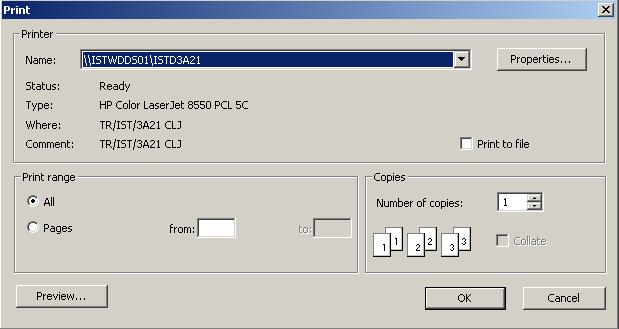
The ActiveX control displays a custom print dialog box that supports common features with other print dialog boxes.
The client-side print dialog box includes a printer list for selection, print preview option, page margin settings, orientation, etc.
Downloading and installing the ActiveX control RSClientPrint.cab requires administrator permissions on the client machine.
If a user runs a SQL Server Reporting Services report and if the toolbar is displayed, the user can click on the print buttons seen on the right side of the toolbar.

If the print command is being run for the report server by that user's client machine then the client request the RSClientPrint.cab download from the related Report Server.
While downloading the ActiveX software the browser will promt the user whether the software will be installed or not considering the security issues.
Again, it is necessary to note that administration permissions are required for downloading and installing the rsclientprint ActiveX.
For RSClientPrint install, RSClientPrint.cab download is the first step in installing the ActiveX on IE browser.
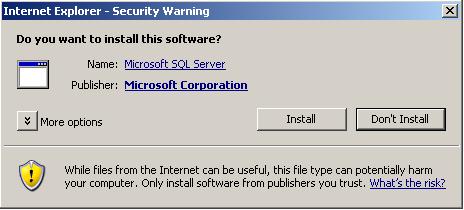
After the installation of the RSClientPrint is successfully done, the Print dialog box is displayed as shown below.
You will realize that the Print options is very similar to standart Print dialog boxes that run on Windows systems including preview, number of copies, print range, printer selecting from available printers, etc.
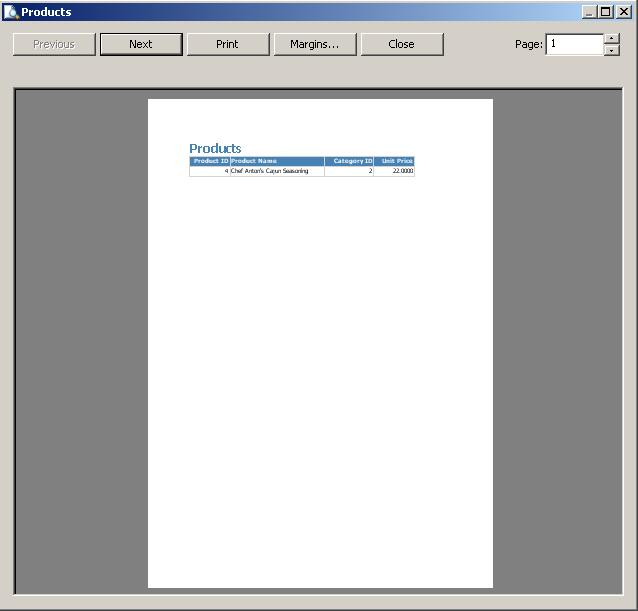
Print Preview option for the Reporting Services report.
rsclientprint.cab and rsclientprint install
In most companies the Information Technology policies do not grant the admin privileges to the end users.
So the end users running on the client computers can not download and install the ActiveX print client file RSClientPrint.cab.
So it is a need for the IT departments to distribute this client side printing ActiveX control in order to support their clients to work with SQL Server Reporting Services (SSRS) without a problem.
You can find the file rsclientprint.cab on the Report Server bin folder. The Reporting Services Report Server folder can be on
C:\Program Files\Microsoft SQL Server\MSSQL\Reporting Services\ReportServer\bin folder for SQL Server 2000 Reporting Services and
C:\Program Files\Microsoft SQL Server\MSSQL.4\Reporting Services\ReportServer\bin folder for SQL Server 2005 Reporting Services.
Actually for SQL Server 2005, the installation folder may vary due to the installed components of the SQL Server 2005.
You can also find the ReportServer bin folder by openning the IIS Manager and then exploring the ReportServer (if installed with default settings) virtual directory.
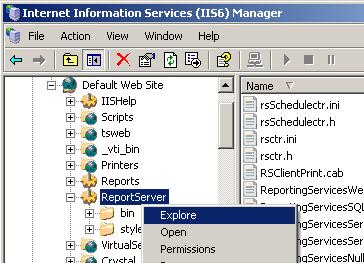
If you extract the contents of the RSClientPrint.cab file you will see that the .cab file consists of the following files.
gdiplus.dll
RSClientPrint.dll
RSClientPrint.inf
RSClientPrint_1028.rll
RSClientPrint_1031.rll
RSClientPrint_1033.rll
RSClientPrint_1036.rll
RSClientPrint_1040.rll
RSClientPrint_1041.rll
RSClientPrint_1042.rll
RSClientPrint_1043.rll
RSClientPrint_1046.rll
RSClientPrint_1053.rll
RSClientPrint_2052.rll
RSClientPrint_3082.rll
For a silent deployment of RSClientPrint.cab, you only need to distribute RSClientPrint.dll file and the .rll files.
If you copy the files listed below under the folder C:\WINNT\system32 for client computers.
RSClientPrint.dll
RSClientPrint_1028.rll
RSClientPrint_1031.rll
RSClientPrint_1033.rll
RSClientPrint_1036.rll
RSClientPrint_1040.rll
RSClientPrint_1041.rll
RSClientPrint_1042.rll
RSClientPrint_1043.rll
RSClientPrint_1046.rll
RSClientPrint_1053.rll
RSClientPrint_2052.rll
RSClientPrint_3082.rll
Register the RSClientPrint.dll dll file by running the regsvr32.exe command on the command prompt shown as below.
c:\regsvr32.exe /s
c:\winnt\system32 \rsclientprint.dll
So, if a script or an MSI file that copies the listed files above and registers the rsclientprint.dll will be enough to deploy the Reporting Services Client Side Printing functionality.
SQL Server 2008 Reporting Services on Windows 7 RSClientPrint.cab ActiveX file
Windows 7 has been released and SQL administrators and BI developers can start working on SQL Server 2008 on Windows 7 with its one of Business Intelligence (BI) components Reporting Services.
What is changed for SQL2008 SSRS is that the default bin folder of the ReportServer 2008 where new RSClientPrint-x86.cab, RSClientPrint-x64.cab or RSClientPrint-ia64.cab ActiveX file download can be found at :
C:\Program Files\Microsoft SQL Server\MSRS10.MSSQLSERVER\Reporting Services\ReportServer\bin
If you are working on Windows 7 with MS SQL Server 2008, you can review the contents of the new RSClientPrint.cab file downloads.