
ASP.NET Ajax Extensions - UpdatePanel Sample Project
ASP.NET web site developers can now use the Ajax Extensions and ASP.NET Ajax Control Toolkit in order to improve their web sites and benefit from the nature of the ajax architecture during their web site development.
In this document I want to point a few issues on Ajax programming using the Microsoft Visual Studio 2008 Beta 2 (aka Orcas) and create a sample ASP.NET web site using ajax components in the web site pages. The main component we are going to deal with is UpdatePanel Ajax Extension control. So I'm going to use this control in the following sample web application.
Go to the File menu and select New then Web Site menu items in order to create the sample web site project. You can choose the ASP.NET Web Site template for the sample web site from Visual Studio installed templates dialog box.
After you have created your project, we can continue to build the new web site to use the ASP.NET Ajax Control Toolkit and components from Ajax Extensions.
One important note here for web site developers is the .NET Framework version issue. If you have to use .NET Framework 2.0, then you can change the Target Framework from the Build options in the Web Site project property pages screen. You can set .Net Framework 2.0 from the target framework selection box where .Net Framework 3.5 is the default selection.
It is important to note that with the default configuration in the Orcas web site template, the following references are added from the .Net Framework 3.5
- System.Core
- System.Web.Extensions
- System.Xml.Linq
Why this is important, since System.Web.Extensions reference is added to the project, Ajax Extensions controls can be used easily within the web site design and source codes.
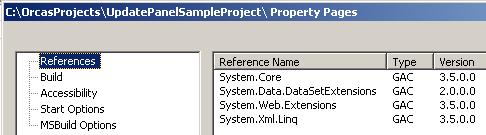
You can see the Ajax Extensions introduced from .Net Framework 3.5 System.Web.Extensions reference below:
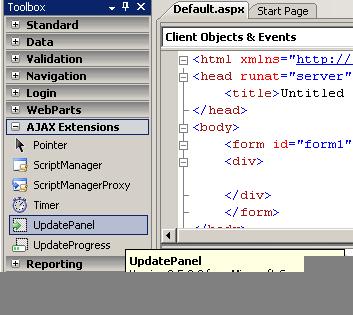
Ajax Extensions
- Pointer
- ScriptManager
- ScriptManagerProxy
- Timer
- UpdatePanel
- UpdateProgress
But if you decide to select .Net Framework 2.0 as the target framework, then the extensions will be removed from the toolbar.
Below you can find the sample codes and application which is built upon .Net Framework 3.5 components.
Drag and drop a Textbox control, Button control and a GridView control from the Toolbox. Later define a data source for the GridView control using the common tasks.

Here I do not give place for how to define data sources for data controls. The Data Source Configuration Wizard helps the programmer and directs clearly how data connections will be created for data components. I chosed my local Microsoft SQL Server 2005 database and created the datasource with id SqlDataSource1. The SelectCommand of the SqlDatasource1 is as "SELECT * FROM Employees".
This page will filter employees according to their names where the criteria is defined by using the textbox. In order to make filtering on the Employees table, I'm re-setting the SqlDatasource SelectCommand in the Button1.Click event as follows.
Protected Sub Button1_Click(ByVal sender As Object, ByVal e As System.EventArgs) Handles Button1.Click

    SqlDataSource1.SelectCommand = "select * from employees where empname like '%" & TextBox1.Text & "%'"

    GridView1.DataBind()

End Sub
When you click on the Button control, the page postbacks as we used to work and then the Button1_Click sub routine is processed which handles the filtering. You can see from the browser that the page is submitted when the button is clicked and the response is displayed after the page reloads
Now let's take a look at how we can handle the same process using Ajax Extensions.
Sample ASP.NET Web Site Project with UpdatePanel Ajax Extensions Control
First, drag and drop a ScriptManager object from the Ajax Extensions toolbox. This is important and must be placed before ant other object that requires script manger. Otherwise you will get the following error warning about the lack of ScriptManager:
The control with ID 'UpdatePanel1' requires a ScriptManager on the page.
The ScriptManager must appear before any controls that need it.
Description: An unhandled exception occurred during the execution of the current
web request. Please review the stack trace for more information about the error
and where it originated in the code.
Then next step will be to drag and drop an UpdatePanel object from Toolbox among Ajax Extensions to the design layout of the page.
Switch to source view and insert a ContentTemplate into the UpdatePanel. This ContentTemplate will include the controls that we wish to be refreshed and reloaded using the Ajax metodologies.
Also insert the Triggers tag into the UpdatePanel. Then define the control which will trigger the update on the controls which are placed in the UpdatePanel. To create a trigger, use AsyncPostBackTrigger which also defines the control and the event that will cause the refresh. Below is the sample from our application.
<asp:AsyncPostBackTrigger ControlID="Button1" EventName="Click" />
You see, when Button1 control is clicked then the content in the UpdatePanel ContentTemplate will be reloaded and the server side click event of the Button1 control will run.
We should also move the GridView control into the ContentTemplate. Otherwise we will not see the any change or update on the dataset displayed by the GridView control.
I pasted the source code of the sample page below:
<form id="form1" runat="server" >

<div>


<asp:ScriptManager ID="ScriptManager1" runat="server">

</asp:ScriptManager>


<asp:TextBox ID="TextBox1" runat="server"></asp:TextBox>

<asp:Button ID="Button1" runat="server" Text="Button" />

<br />


<asp:SqlDataSource ID="SqlDataSource1" runat="server"

ConnectionString="<%$ ConnectionStrings:WorksConnectionString %>"

SelectCommand="SELECT * FROM Employees"></asp:SqlDataSource>

<asp:UpdatePanel ID="UpdatePanel1" runat="server">

<ContentTemplate>


<asp:GridView ID="GridView1" runat="server" DataSourceID="SqlDataSource1"

AutoGenerateColumns="False" DataKeyNames="empid">

<Columns>

<asp:boundfield DataField="empid" HeaderText="empid" ReadOnly="True"

SortExpression="empid"></asp:boundfield>

<asp:boundfield DataField="mgrid" HeaderText="mgrid" SortExpression="mgrid">

</asp:boundfield>

<asp:boundfield DataField="empname" HeaderText="empname"

SortExpression="empname"></asp:boundfield>

<asp:boundfield DataField="salary" HeaderText="salary" SortExpression="salary">

</asp:boundfield>

</Columns>

</asp:GridView>


</ContentTemplate>

<Triggers>

<asp:AsyncPostBackTrigger ControlID="Button1" EventName="Click" />

</Triggers>

</asp:UpdatePanel>

<br />

</div>


</form>
One important point for developers is how the http request is handled on the server side. If you place breakpoints and run the application in debug mode, you will realize that the page is handled on the server side just it was submitted as the old style. The Page_Load sub routine is processed then the button click event is processed. So you have the chance to change other control values on the Page_Load and Button.Click events, but if the request is done by UpdatePanel trigger controls and events, then only the controls that are in the ContentTemplate is updated.
Let's work with a sample. If you place a Label control outside the UpdatePanel, and in the Page_Load event use this Label as a counter which counts page loads you will see that the Label is updated if called by normal page request. But if you call the page request using Ajax controls, although the label value is updated in the Page_Load code block and this value is kept in the ViewState, it is not displayed on the page.
You can find this control also in the sample project.
Using this sample ASP.NET Web site project, we have showed how web site developers can work with UpdatePanel in their projects using Visual Studio 2008 Beta 2.
You can find the sources of the sample ajax project in Files section of this web site. You can download it from ASP.NET Ajax UpdatePanel Sample Project download section.